



Discord is widely used for gaming groups, study communities, creative teams, and private friend circles. Members share gameplay clips, event recordings, screenshots, tutorials, and short announcements every day.
The problem is that video files can become large very quickly, especially when they are recorded in high resolution or at a high frame rate.
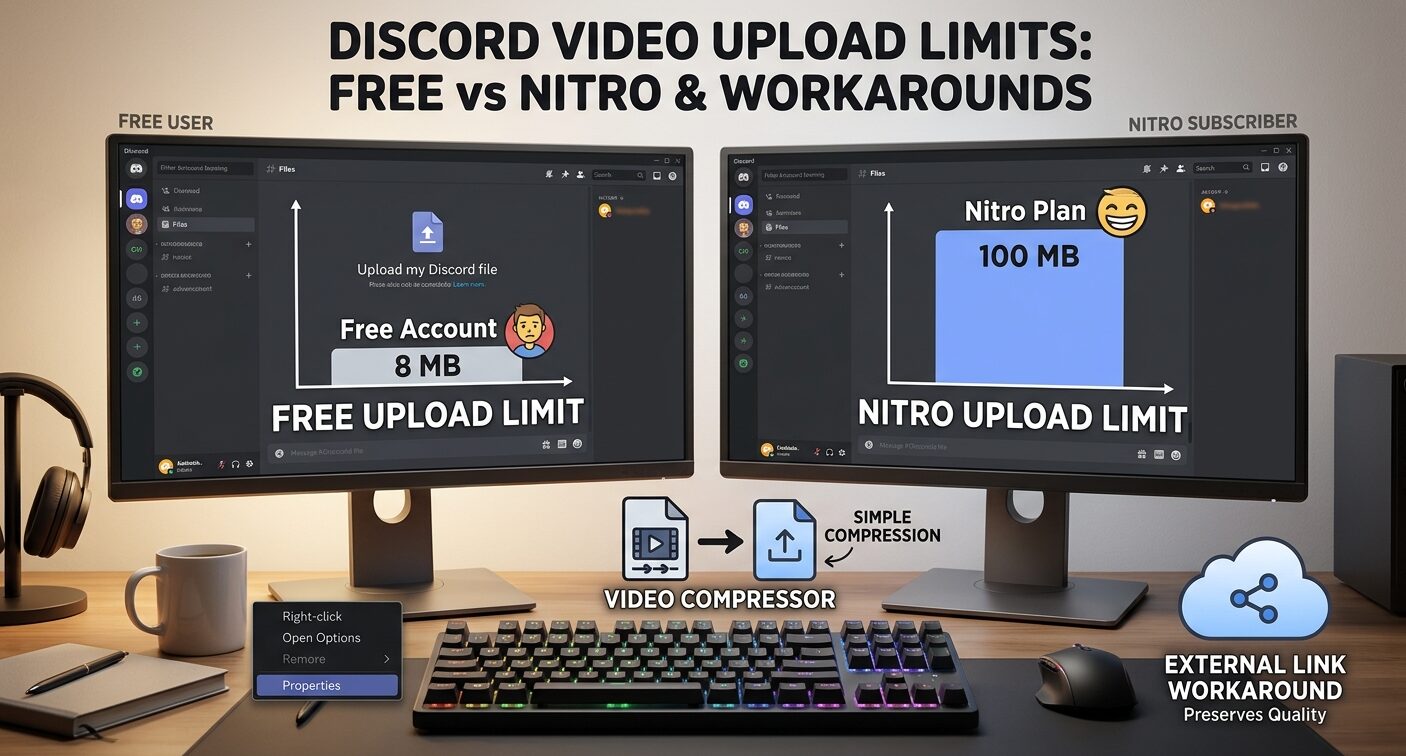
Discord applies different upload limits depending on the account plan and the way a file is shared. Free users usually have less room for large attachments, while paid Nitro plans provide higher limits and additional features.
The exact limits can change over time, so users should check Discord’s current plan information before relying on a specific number.
When a video is too large, a video compressor for discord can reduce the file size before upload. Compression is often the simplest workaround because it allows members to keep sharing videos without changing the community’s workflow or asking everyone to purchase a subscription.
Why Discord Limits Video Uploads?
Every file uploaded to Discord uses storage and bandwidth. A large video consumes more server space and takes longer to upload and download. It also requires more data when members view or save it.
Upload limits help Discord manage these resources. They also improve the experience for members with slower connections or limited mobile data. Without file limits, a busy community could quickly fill channels with very large recordings.
The limit applies to the file being attached, not just the video’s duration. A short 4K clip may be larger than a longer 720p clip. File size depends on resolution, frame rate, codec, bitrate, audio, and the amount of movement in the scene.
Free Accounts and Nitro Plans
Discord offers a free account option that works well for everyday chat and smaller attachments. Members can send messages, images, links, and short videos, but large files may exceed the standard attachment limit.
Nitro plans provide larger upload allowances and other account features. This can be useful for people who frequently share long gameplay recordings, high-resolution tutorials, or creative project files.
However, Nitro is not always the best answer for every community. Some members may only upload a video occasionally. A community manager may also prefer a solution that works for everyone, including free users.
Before paying for a plan, consider how often large files are shared. If the problem only happens once or twice a month, compression or an external sharing method may be more practical.
How to Check Whether a File Is Too Large?
Most operating systems show the size of a video in the file information panel. On a computer, right-click the file and open its properties. On a phone, open the details or information screen in the gallery or file manager.
Check the size before opening Discord. If the file is close to the account limit, remember that small changes during export may increase it slightly. It is safer to leave some space below the limit.
If Discord rejects the file, the error message usually indicates that the attachment is too large. The original video is not necessarily damaged. It simply needs to be compressed, exported with different settings, or shared through another method.
What Determines Video File Size?
Several technical choices affect the size of a video.
Resolution
Resolution describes the number of pixels in each frame. A 4K video contains more visual information than a 1080p video, and a 1080p video contains more than a 720p video.
Reducing resolution is one of the fastest ways to reduce file size. For Discord clips, 1080p is often enough for viewers to understand gameplay or tutorials. A lower resolution may be acceptable for quick updates or casual messages.
Frame Rate
Frame rate is the number of frames shown per second. Sixty frames per second can make gameplay look smooth, but it also requires more data than 30 frames per second.
If the video shows fast action, a higher frame rate may be helpful. If the clip is mostly a talking head, screen recording, or slow demonstration, a lower frame rate may be sufficient.
Bitrate
Bitrate controls how much data is used for each second of video. A higher bitrate can preserve more detail, but it creates a larger file. A lower bitrate reduces the file size but may introduce blocky textures or blurred movement.
The best bitrate depends on resolution, frame rate, and content. A screen recording with small text may need more care than a simple camera clip with a plain background.
Codec
A codec is a method for compressing and storing video. Different codecs can produce different file sizes and levels of quality.
Modern codecs may save space while maintaining good visual quality, but compatibility matters. A file that is highly compressed may not play correctly on every device or may take longer for some members to decode.
For community sharing, a widely supported format is often more useful than the most advanced option.
Audio
Audio also contributes to file size. A long recording with high-quality audio can be larger than expected. For voice chat clips, a moderate audio setting may be enough. Music and live event recordings may require more care.
A Simple Compression Workflow
Members can use a straightforward workflow before uploading:
- Choose the original video.
- Decide how much quality is actually needed.
- Select the target resolution.
- Choose a balanced compression setting.
- Export a copy instead of replacing the original.
- Check the new file size.
- Watch the compressed version.
- Upload it to Discord.
Keeping the original file is important. If the compressed copy looks too blurry, the creator can return to the original and choose a different setting.
A compression tool should make the process easy to understand. Clear options for resolution, format, and file size help users avoid guessing.
How Much Quality Can Be Reduced?
The answer depends on the purpose of the video. A short reaction clip may still be useful after strong compression because viewers care more about the moment than fine detail.
A tutorial with small interface text needs more visual clarity. A competitive gameplay review may also require enough detail to see movement and timing.
Instead of asking whether quality has been reduced, ask whether the important information is still visible. If the main action, captions, and speaker remain clear, a smaller file may be perfectly acceptable.
Compressing on a Phone
Many Discord users record videos on phones, so mobile compression is important. A practical mobile workflow is:
- open the clip in a video editing or compression tool,
- select a lower export resolution if needed,
- choose a moderate quality setting,
- save the compressed copy,
- check the file size,
- upload through the Discord mobile app.
Phone storage can become crowded when both original and compressed copies are kept. After confirming that the compressed file works, users can move the original to cloud storage or another backup location if necessary.
Avoid repeatedly compressing the same file. Each additional export can reduce quality. Always work from the highest-quality original available.
Compressing Gameplay Clips
Gameplay recordings often contain fast movement, particle effects, dark scenes, and detailed backgrounds. These features can create large files and make compression artifacts more visible.
A few practical choices can help:
- reduce 4K footage to 1080p,
- use 30 frames per second for slower clips,
- keep 60 frames per second for short competitive highlights,
- trim loading screens and unused sections,
- remove unnecessary audio tracks,
- check dark areas for blocky textures.
Trimming is often overlooked. Removing ten seconds of menus or waiting time may reduce the file more effectively than lowering quality across the entire video.
Compression for Tutorials and Screen Recordings
Screen recordings have different needs. Small text, icons, and cursor movement must remain visible.
If a tutorial is too large, try trimming pauses first. Then reduce the frame rate if the screen changes slowly. Keep enough resolution for viewers to read the interface.
For a short demonstration, a moderate 720p or 1080p export may be enough. Add captions or a short explanation in the Discord message so members know what to watch for.
Workarounds Without Nitro
Compression is only one workaround. Communities can also use other sharing methods when a file remains too large.
Share a Cloud Storage Link
Upload the original video to a cloud storage service and post a view-only link in Discord. This preserves the original quality and avoids the attachment limit.
Make sure the sharing permission is correct. A link that requires a private login may not work for all community members.
Use a Video Hosting Platform
For public tutorials, reviews, or highlights, a video hosting platform may be more convenient. It can provide playback in the browser and reduce the need for members to download a large file.
This option is less suitable for private conversations or sensitive recordings. Check the platform’s privacy settings before sharing.
Split the Video Into Parts
A long file can be divided into several smaller clips. This is useful for multi-stage tutorials, event recordings, or long gameplay sessions.
The parts should be labeled clearly, such as Part 1, Part 2, and Part 3. Splitting is less convenient than sharing one file, but it can work when compression would make text or movement too unclear.
Post a Short Preview
If the full video is stored elsewhere, upload a short compressed preview to Discord. The preview helps members decide whether they want to watch the complete version.
This approach works well for creative communities, event organizers, and moderators who need to announce a new recording.
Avoiding Common Compression Problems
Compression can create problems when settings are too aggressive. Watch for:
- blurred text,
- blocky faces,
- smeared movement,
- missing audio,
- incorrect aspect ratio,
- delayed sound,
- washed-out colors,
- a file that is still too large.
Always watch the exported copy before uploading. A file can meet the size requirement and still be unusable if the audio is missing or the picture is badly damaged.
Also check the orientation. A vertical phone video should not be accidentally exported as a stretched horizontal file.
Privacy and Community Rules
Videos shared in Discord may include usernames, private conversations, faces, locations, or personal information. Before uploading, review the clip for anything that should not be public.
Moderators can create simple community rules, such as:
- do not share private recordings without permission,
- blur personal information,
- avoid posting copyrighted material without authorization,
- label large files clearly,
- use spoiler tags for unreleased content,
- remove recordings that violate community guidelines.
Compression does not remove privacy risks. It only changes the file size.
Choosing Between Nitro and Compression
Nitro may be worthwhile for members who regularly upload large files and want a convenient workflow. Compression may be better for occasional uploads, shared communities, or users who prefer not to pay for a larger attachment allowance.
A simple decision process is:
- If large uploads are frequent, compare the cost of Nitro with the time saved.
- If large uploads are occasional, compress files when needed.
- If original quality is essential, use cloud storage or a hosting platform.
- If the community has many free users, provide a compression guide that everyone can follow.
The best solution depends on the type of content and how often it is shared.
A Discord Upload Checklist
Before posting a video, check:
- Is the file within the current account limit?
- Is the resolution appropriate for the audience?
- Can viewers read the important text?
- Is the audio present and synchronized?
- Is the video cropped correctly?
- Does the file contain private information?
- Should the video be posted with a spoiler tag?
- Would a link preserve better quality?
- Has the compressed copy been watched from beginning to end?
This checklist takes less than a minute and prevents many common upload problems.
Conclusion
Discord upload limits are designed to manage storage, bandwidth, and playback for a large number of users. Free accounts may have smaller attachment allowances, while Nitro plans provide more room for frequent uploads. However, paying for a subscription is not the only solution.
Compression, trimming, cloud links, video hosting, and splitting files can all help communities share content more easily.
The right choice depends on the purpose of the video, the amount of detail it contains, and how often large files need to be uploaded.
A balanced compression workflow keeps the important action visible while reducing unnecessary file size. When users check the final copy for quality, privacy, and compatibility, they can continue sharing useful videos on Discord without letting upload limits interrupt the conversation.
